Baby Filter TikTok: Which Effect Are You Looking For?
Sort the different baby filter TikTok searches, then turn a permitted portrait into a readable before-and-after post without pretending an AI edit is a real childhood photo.
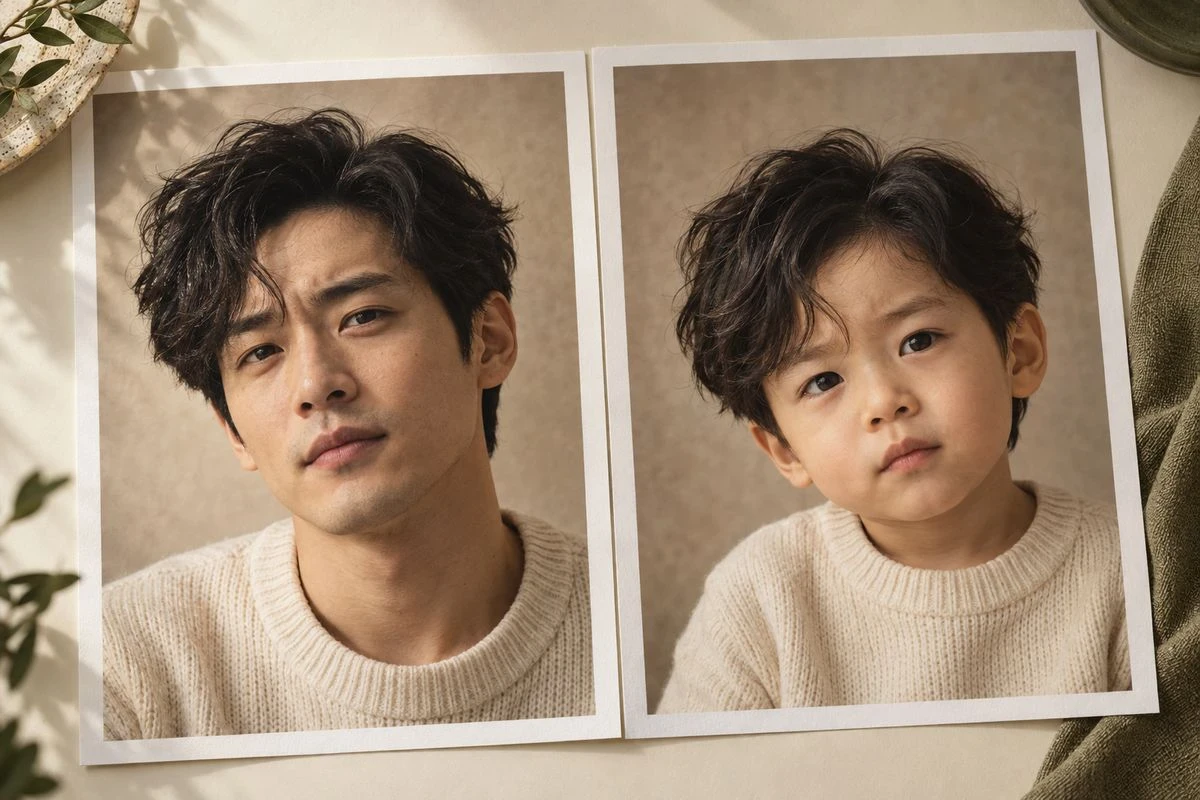

“Baby filter TikTok” is not one button. People use the phrase for at least three different things: a live effect that changes a camera view, a short-video template that expects several clips, and an AI image made elsewhere and edited into a reveal. If you pick the wrong workflow, you can spend ten minutes looking for an effect that was never in the video.
This page starts with recognition. Once you know which result you want, the finished post is simple: show the source, reveal the fictional baby version, and give viewers enough context to understand the edit.
Disclosure: The saved-image route uses Baby Filter. The native effect and template routes belong to their own platforms and are included so the search intent stays honest.
First, identify the baby effect you saw
Look at the video’s first few seconds and ask what actually changes.
| What you saw | Likely workflow | Best next step |
|---|---|---|
| A person becomes baby-like while the camera is recording | Native TikTok effect or another live Lens | Find the effect name on the source video and check whether it is still available in your region |
| Two or more vertical clips snap together with a preset rhythm | Template workflow | Check how many clips and what aspect ratio the template expects |
| A still portrait changes from adult to baby, often with a clean reveal | AI photo edit | Make the image first, then build the TikTok around it |
| Two adults turn into an imagined child or family | Future-baby concept | Treat it as a different search and choose a two-person workflow |
Older explainers add confusion here, and it is worth knowing why. Search language outlives the trend it described. A write-up from several years ago may describe an effect applied to real babies, which is a different task from turning an adult selfie into a baby version. A template published for a vertical montage is a third format again. The name stayed; the workflow changed. Read the visual behaviour of the video before copying the name.
Why the effect you saw may already be gone
This is the most common reason people end up on a page like this one, and it has nothing to do with doing something wrong.
TikTok effects are overwhelmingly creator-made. The same visual idea exists as dozens of separate effects, published by different creators, under near-identical names. When one goes quiet, another is usually still live — frequently filed under a slightly different spelling. You are not looking for the baby filter. You are looking for one of many.
Effects are added and retired continuously. There is no announcement when an effect stops being surfaced. A saved clip that uses it keeps working, which makes the disappearance feel inconsistent: the effect clearly exists, so why can it not be found?
Availability varies by account and region. Two people on the same app version in the same country can see different effect trays. Roll-outs are staggered, and an effect that is live for one person may not be live for another yet.
Older effects stop rendering cleanly. Face tracking depends on the device face mesh. When the platform updates that pipeline, effects built against the previous version can degrade — softening, drifting, or losing the face — and get quietly dropped rather than fixed.
None of this means the effect is gone forever. It does mean a missing effect is a normal state of affairs, and that planning a post around one specific in-app effect is a fragile way to work.
The photo route: make a reveal people can read
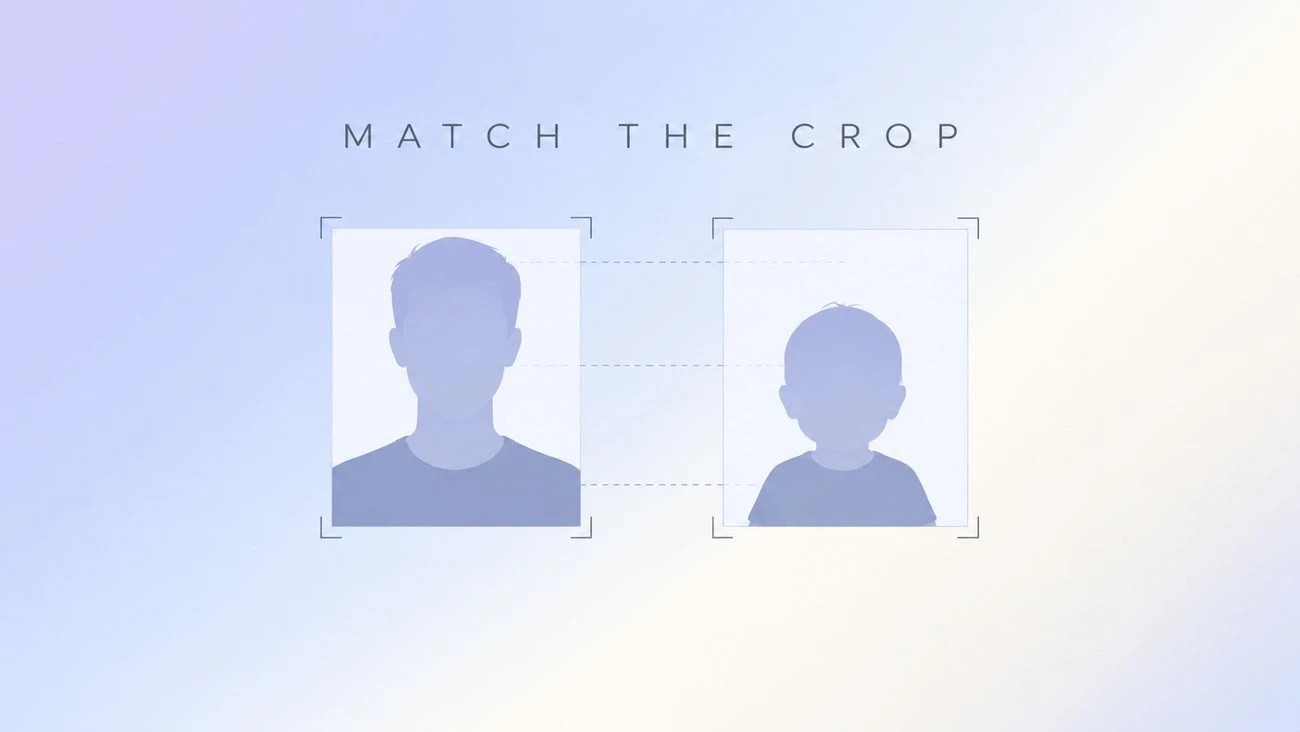
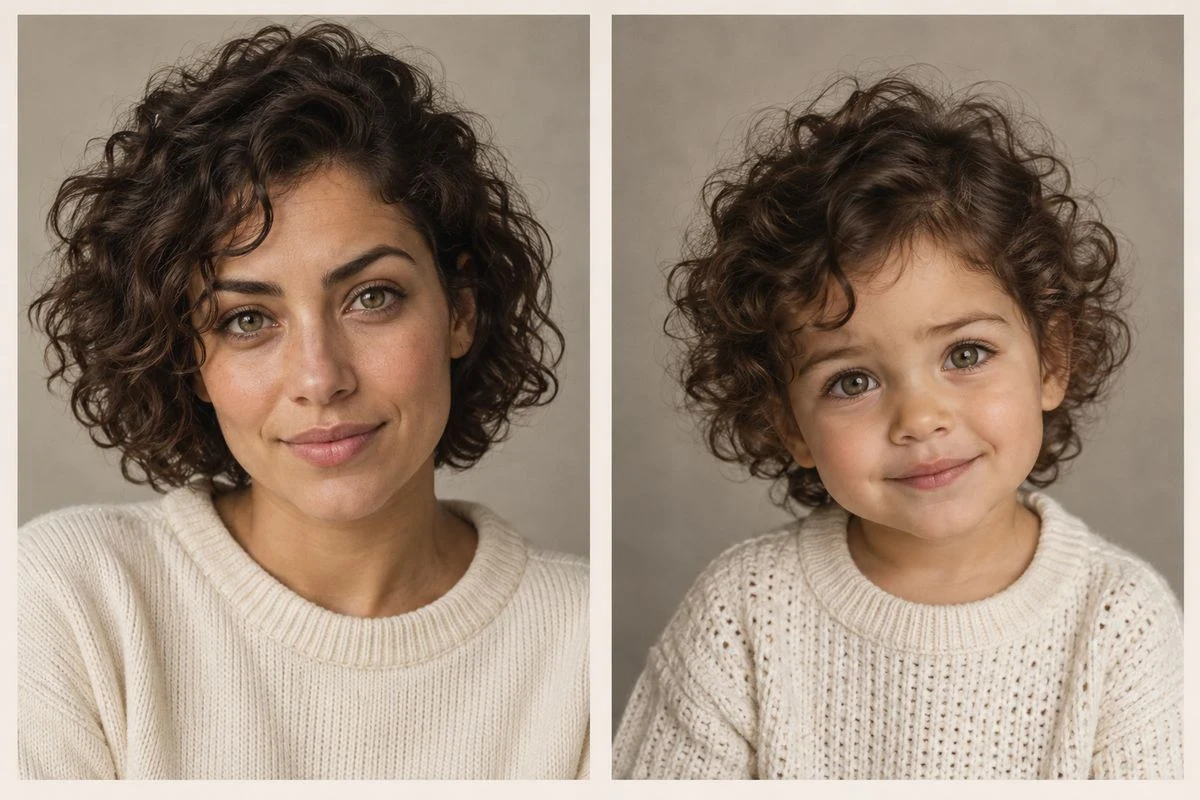
If the video uses a clean adult-to-baby image change, start with a portrait you own or have permission to edit. Keep the face large, the eyes and mouth visible, and the background quiet enough that the two frames can share a crop. A Baby Filter can turn one source portrait into a fictional baby or toddler version; choose a natural direction first and save the original beside the result.
Review the result before opening TikTok. Check the eyes, cheeks, mouth, hairline, and expression. If the baby image could be anyone, do not solve that with stickers. Try a closer source crop or a less exaggerated direction. The post depends on recognition, not on the maximum possible cheek size.
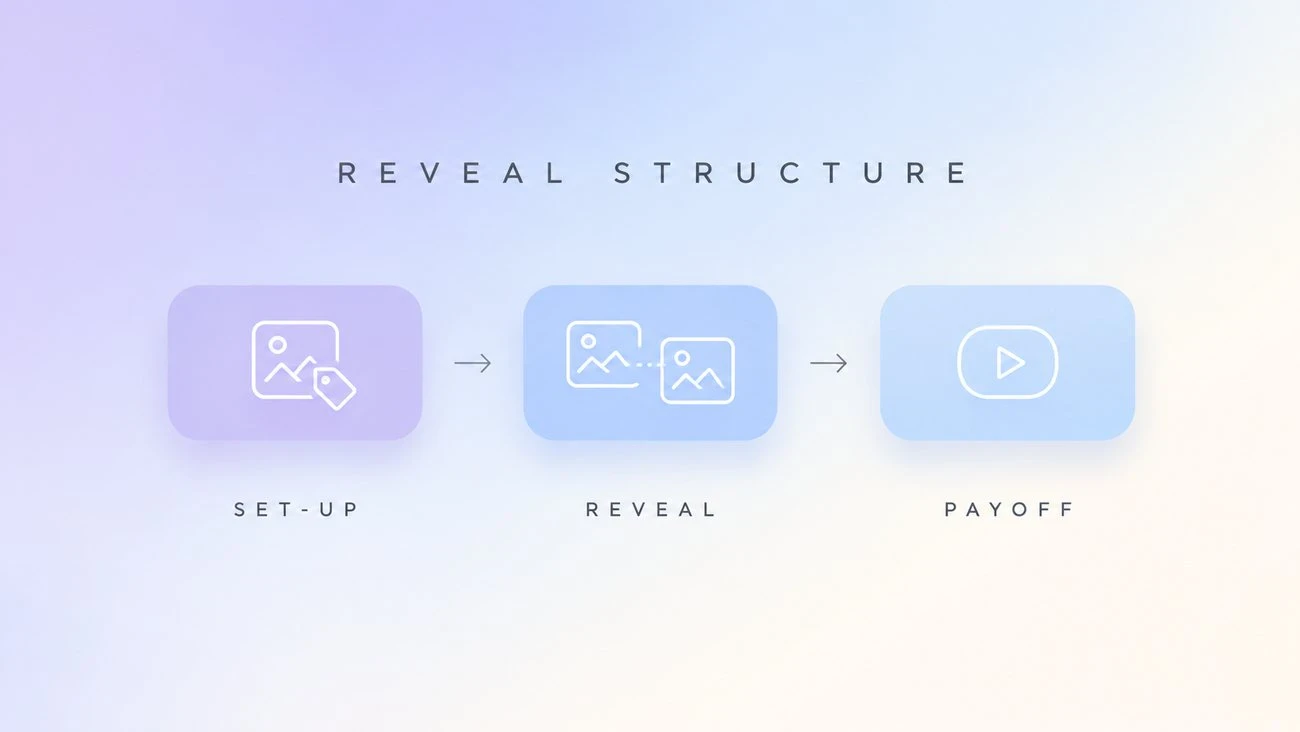
A clean 9:16 structure is enough:
- Set-up: show the original for a beat and add a small “AI baby version” label if the context needs it.
- Reveal: cut to the transformed image at the same crop and position.
- Payoff: hold the result long enough to see the familiar cue — the crooked smile, fringe, glasses shape, or expression.
That is a format suggestion, not an official TikTok recipe. Add music or a trend only when it leaves the faces visible. On a phone, overlays that seem small in an editor can cover the feature viewers are comparing.
One detail decides whether the reveal lands, and it is easy to miss: match the crop exactly. If the original is framed at the shoulders and the baby version is framed at the chin, the viewer reads two unrelated photos rather than one transformation. Duplicate the crop before generating, and keep both frames at the same scale and position. Everything else in the edit is optional; this part is not.
For the source-image decisions behind the reveal, see Baby Face Filter: Keep the Face Recognizable. If the same finished image is going to a meme instead, Baby Filter Meme has short caption and thumbnail examples.
How to tell whether an effect is live right now
Before you build around a specific effect, spend thirty seconds checking whether it exists for your account.
Search the effect name in the effects tray, then sort the results by how recently each was published. A recently published effect is more likely to render correctly on a current app build. A result with an old publish date and no recent usage is a candidate for a retired one.
Search the name as a hashtag. Effect pages are frequently tagged rather than described, so the hashtag view often surfaces the currently live version alongside older clips that used the retired one. This is the fastest way to see both at once.
Watch clips from the last few weeks, not the last few years. An old clip proves the effect existed once. A recent clip proves it exists now. If every recent clip under a name is a screen recording of something else — someone filming another phone, or reposting an old video — the effect has likely lapsed and creators have moved on.
Check the effect’s own detail page where you can reach it from a video. A page that still resolves but never appears in the tray is usually out of rotation rather than gone.
If all four checks come back empty, stop searching. The workflow you want is the photo route, and it does not depend on any of this.
It is also worth checking before you commit to a concept rather than after. The cost of the checks is half a minute; the cost of building a scripted post around an effect that turns out to be unavailable to your account is an afternoon, plus a reshoot that may not be possible if the person you were filming is not around.
When a live effect is the better choice
Use a native live effect when the reaction is the point: a person sees their face change, laughs, and records the moment. That is a different piece of content from a planned reveal, and it is worth choosing deliberately rather than by default. The effect’s name, availability, and controls belong to the platform, so use the source video’s effect entry rather than assuming a permanent button exists.
Use a finished AI image when you need to choose the exact portrait, make a pair of matching edits, or compare a realistic and a funny version side by side. Use a template when the timing and clip arrangement are already part of the idea. These workflows can sit in the same search result, but they do not share inputs, controls, or failure modes — and mixing them is how most confused attempts start.
Matching edits for two people
A large share of the reveal posts people want to copy involve two faces rather than one: couples, siblings, close friends, and the “us before we met” format.
Two practical notes if that is the version you are making. Both faces need to be readable in the source — a wide shot where one person is half-turned or standing in shadow usually produces one strong edit and one generic baby, and the mismatch is visible immediately. And apply the same direction to both faces. Running a natural baby direction on one person and an exaggerated comedic one on the other produces a pair that reads as accidental rather than deliberate.
If the reveal is built around a recognised pair, match the crop and the background as well as the direction. Viewers compare the two halves of the frame against each other, and any inconsistency between them is more noticeable than an imperfection in either one.
A small edit that makes the joke land
Choose one sentence that belongs to the image. “Same attitude, smaller cheeks” works when the expression survives. “My childhood photo leaked” is misleading if the image is AI-generated. A short caption can be fun without claiming a fictional age-down portrait is a real record.
For realistic AI-generated content, read TikTok’s current AI-generated content guidance before publishing. The platform’s requirements cover more than a caption label, and they change over time. Use only likenesses you are permitted to use, and do not assume that disclosure alone makes every edit eligible for every context.
Two rules are worth building into the habit regardless of what current policy says. Label generated images as generated — the output is a fictional version of a photo, not a photo, and presenting it as real is the one use with no defensible version. And ask before editing someone else, including partners and close friends; a private joke between people who agreed to it is a different thing from a public post.
Troubleshooting the three common failures
The face is too small. Crop a copy before generation, then use the same close framing for both TikTok frames. Downscaling a full-body shot into a 9:16 frame shrinks the features viewers are meant to compare.
The result looks like a stock baby. Switch from an exaggerated meme direction to a natural baby or toddler direction, and name one cue to preserve — hair direction, a crooked smile, the shape of the glasses. Preserving a specific feature is what turns a generic infant into a recognisable one.
The reveal feels like two unrelated photos. Match the crop, the background, and the scale. The viewer should be able to compare the two frames before noticing the transition. If the background changed between them, the eye reads a cut rather than a transformation.
Once you know which baby filter TikTok you actually saw, the production decision is straightforward. Open the native effect for a live reaction, use the template for its intended clips, or make a controlled source-and-result pair with Baby Filter. The strongest post is the one whose visual promise matches its tool.
Try it yourself on Vofy
Generate AI images and videos with the best models - all in one studio.
Discover More
 Sofia Rodriguez•
What Would I Look Like as a Baby? AI Generator Guide
A practical guide to making a baby face filter from one portrait, choosing a source photo, judging identity drift, and fixing an edit that looks like a random child.
 Sofia Rodriguez•
Baby Filter Meme: Four Reactions You Can Make Your Own
Build a baby filter meme with a readable expression, a short caption, and an original image instead of copying an old Snapchat screenshot.
 Sofia Rodriguez•
Snapchat Baby Filter: Find and Use the Right Lens
Find the Snapchat baby filter people mean, tell a face Lens from a similarly named effect, and use Snapchat’s current camera flow without chasing an outdated tutorial.