What Would I Look Like as a Baby? AI Generator Guide
A practical guide to making a baby face filter from one portrait, choosing a source photo, judging identity drift, and fixing an edit that looks like a random child.
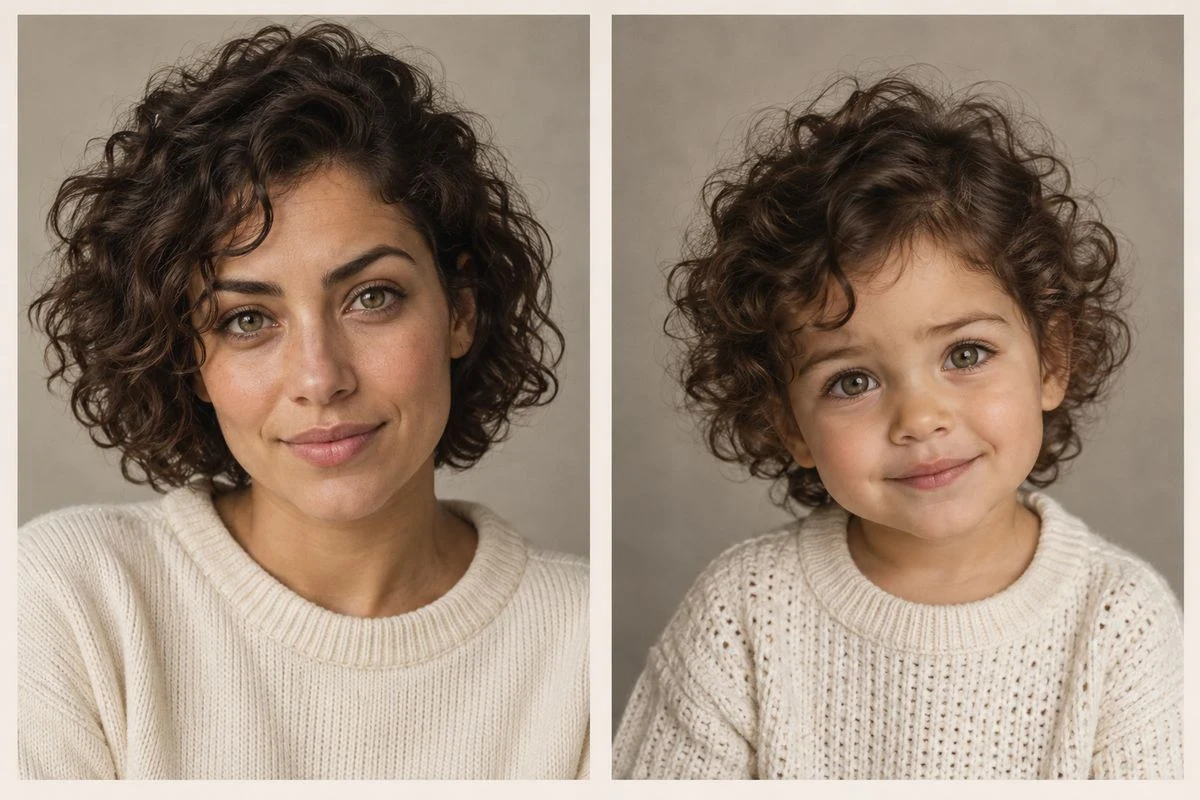

A good baby face filter has a small trick: the viewer should notice the age change before they start asking who the child is. That only happens when a few cues survive the transformation — the eye shape, the mouth, the hair direction, the expression energy. “Cute” is easy to generate. Cute and recognizably connected to the source takes a better photo and a more careful review.
This guide is for the one-photo use case. You are turning a portrait into a fictional baby or toddler version of the same person, for a profile picture, a family-chat joke, a meme, or a before-and-after post. It is not a reconstruction of your real childhood and it is not a prediction of a future child.
Disclosure: Vofy’s Baby Filter is the example tool in the saved-photo workflow below. Presets and interface details can change; judge the result from the image you actually receive.
Start with the face, not the filter
The source image decides how much the edit has to work with. Choose a portrait where the face is large enough to read on a phone. Eyes behind dark glasses, a hand over the mouth, a severe side angle, or a beauty filter that has already changed the skin can remove the very cues you want to keep.
Front-facing is the safest starting point, but a relaxed three-quarter portrait can be more natural. Keep the original crop somewhere safe and make a closer copy for the upload if the face occupies only a small part of the frame. A quiet background helps when you want a clean profile image; a lived-in room can work when the point is a funny family-chat post.
Before generating, name two cues you would recognize in a friend. Maybe it is a blunt fringe and a crooked smile. Maybe it is a strong brow and the direction of the curls. Those cues become a review checklist. Without one, it is easy to accept any cute baby as a “good” result.
What the one-photo effect actually does
A baby filter is an age-down creative edit. It usually softens adult proportions, rounds the cheeks, and changes the styling toward a baby or toddler look while using the uploaded face as its reference. It can preserve a family resemblance; it cannot prove what the person looked like as a child.
That distinction matters because three searches often get mixed together:
| If you want… | Look for… | What you should expect |
|---|---|---|
| One person, younger | Baby face filter or age-down filter | A fictional baby/toddler version of one portrait |
| Two adults, imagined child | Future-baby generator | A speculative composite, not a younger portrait of either adult |
| A live camera reaction | Native Lens or social effect | A real-time camera treatment with its own platform limits |
For a single portrait, Baby Filter is the relevant workflow. Treat the available directions as starting moods, not as a finished look. The output still needs a human check.
The five directions you can choose from
The effect is not one fixed look. Five starting directions produce genuinely different images, and picking the wrong one is the most common reason a result feels off.
Natural Baby — the most realistic infant result. Use it when you want something that could pass for an actual photograph.
Toddler Portrait — slightly older, still soft. Useful when the full infant look reads as too young for the photo you are matching.
Studio Baby — a professional-portrait treatment, with lighting and framing that read as deliberate. This is the direction that works best as a profile picture.
Throwback Photo — a vintage surface treatment, aimed at the family-album angle specifically.
Funny Meme — deliberately exaggerated. Use it when the goal is a reaction image rather than a keepsake.
If you are deciding between them, work backwards from where the image will end up:
| Where it goes | Direction that fits |
|---|---|
| A profile picture or lock screen | Studio Baby |
| A post that should look plausible | Natural Baby |
| A family-album or scrapbook angle | Throwback Photo |
| A reaction image or group-chat joke | Funny Meme |
| Matching icons with someone else | Natural Baby or Studio Baby, applied to both faces |
Running the same source through two directions is faster than re-running after you have posted. The realistic and exaggerated ends are far enough apart that most people know within seconds which one suits the photo.
A three-pass workflow that catches bad edits
Pass one: upload a readable moment. Use a photo you own or have permission to edit. Keep the face and the original expression visible. When another person appears, decide whether the finished image is for a private joke or a public post before you start.
Pass two: change one thing at a time. Begin with a natural baby or toddler direction. If the result is too polished for a throwback, change the mood rather than piling on five new instructions. If the image is for a meme, use the Funny Meme direction after you have a recognizable base.
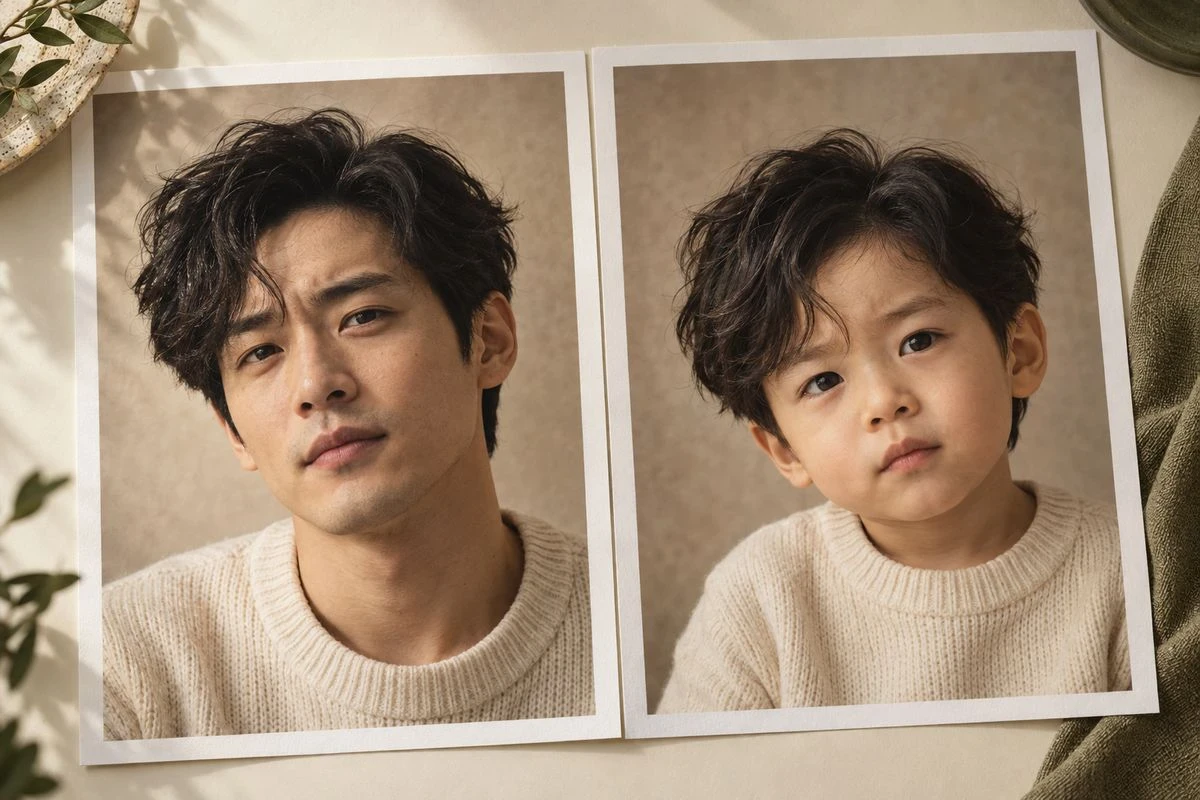
Pass three: inspect the same five points. Compare the source and result at the same size: eyes, cheeks, mouth, hairline, and overall expression. The baby version can be stylized, but the face should still point back to the source. If it looks like a random stock child, do not “fix” it with more decoration. Change the crop, light, or level of exaggeration first.
The most useful correction is often boring: a closer face crop, less dramatic angle, or softer direction. A longer prompt does not restore information that was hidden in the original photo.
How to tell whether the result looks natural
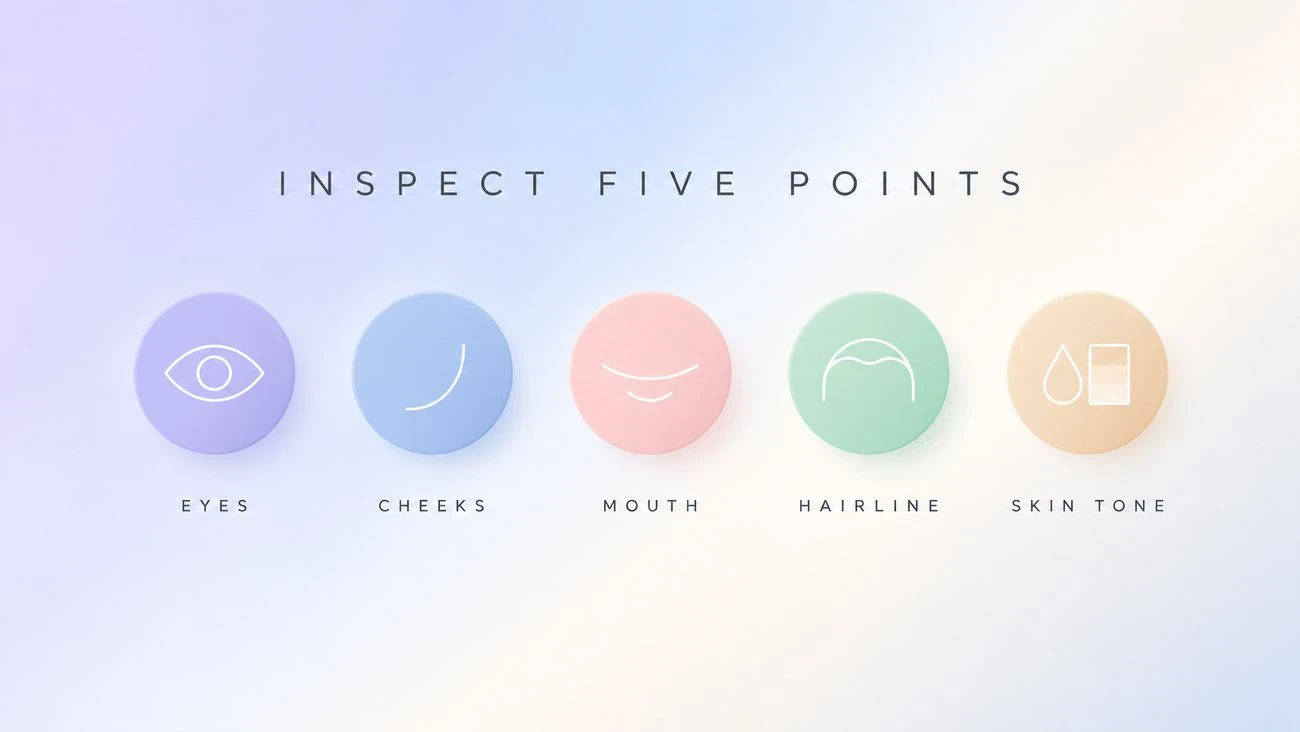
This is the part most guides skip, and it is where edits visibly succeed or fail. Work through it in order, comparing the source and the result side by side.
| Check | What to look for | Why it goes wrong |
|---|---|---|
| Eyes | Eye shape and spacing still match the source | Baby styling tends to enlarge eyes; past a point the face stops reading as the same person |
| Cheek and jaw line | The face keeps a plausible outline | Rounded cheeks can swallow the jaw and flatten the whole head shape |
| Mouth and expression | The expression is still recognisable | A softened mouth loses the crooked smile or the particular set of the lips that people know |
| Hairline | The hairline and hair direction stay consistent | Hair is a strong identity cue and one of the first things to drift |
| Skin tone | The tone stays close to the original | Heavy smoothing can shift warmth and make the result look like a different child |
| Overall proportion | The head-to-shoulder relationship is believable | A baby-sized head on adult shoulders is the clearest tell that the edit was overdone |
A habit that catches most problems: look at the comparison at thumbnail size first. Distortion that is invisible at full size is often obvious when the image is small, and small is how most people will actually see it.
Why restraint beats maximum
There is a temptation to push the direction until the change is unmistakable. It usually produces a worse image, for two reasons.
The first is structural. The larger the change, the more the surrounding image has to accommodate it — hair, skin, expression, and the relationship between head and shoulders. Past a certain point the edit stops being able to hide.
The second is purpose. If the goal is a recognisable baby version of a specific person, a restrained direction answers the question. A pronounced one answers a different question that was not being asked.
The most useful version of this edit is usually the one where someone looking at the photo would struggle to say what changed, only that the person looks younger.
Working from a couple or a duo photo
Single portraits are the most predictable input, but they are not the only one. Couple shots, duo shots, and sibling photos all work, and they are the standard route to matching avatars rather than two unrelated edits.
Two things change when there are two faces in the frame.
Both faces need to be readable. A wide shot where one person is half-turned, standing in shadow, or partly behind the other usually produces one strong result and one generic baby. If the output looks like a recognisable person on one side and a stranger on the other, the source framing is almost always the reason.
The pairing reads better when both edits match in direction. Running Natural Baby for one person and Funny Meme for the other produces a mismatch that looks accidental rather than deliberate. Pick one direction and apply it to both faces.
If you want a matched set rather than two separate images, treat that as its own task. The difference between “two baby edits” and “a matched pair” is entirely in whether the direction and the framing line up.
Turn one result into a useful post
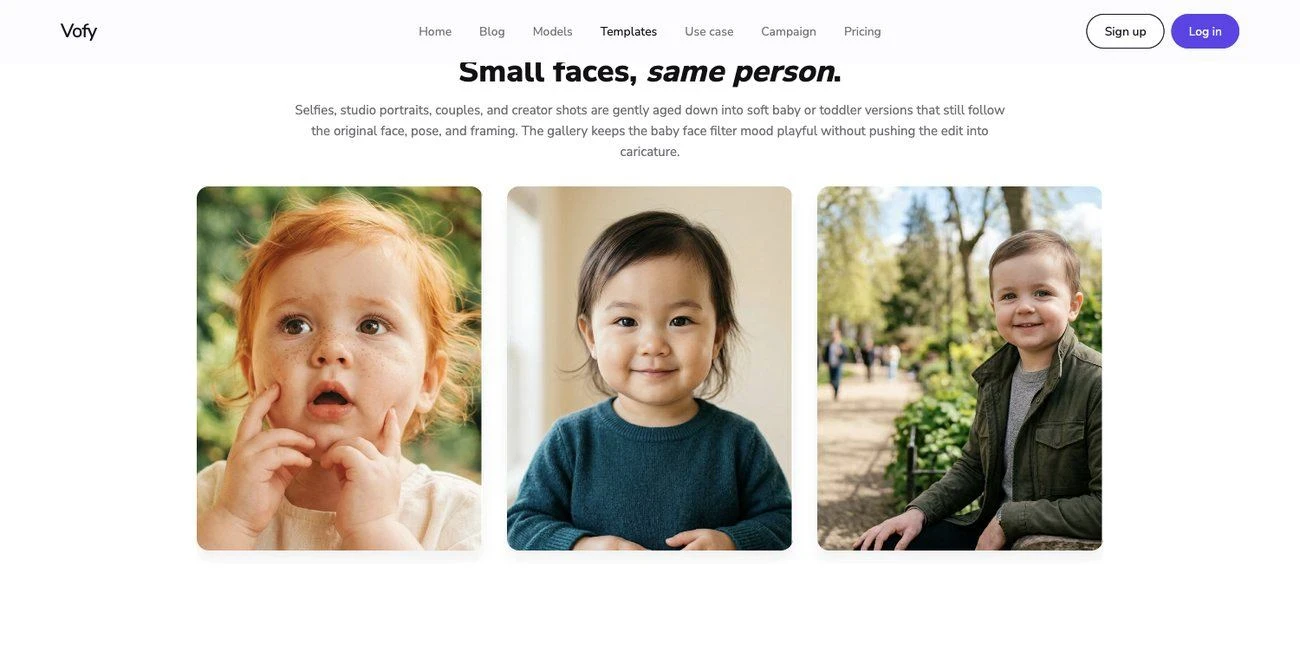
For a profile picture, use a clean crop and let the expression do the work. For a before-and-after, keep the source and result at a similar scale so the viewer can compare them without hunting. For a family-chat joke, a little context helps: “fictional AI baby version” is clearer than letting everyone guess whether an old photo is real.
If you take the result to TikTok, the TikTok baby-filter guide explains how to decide between a live effect, a template, and a finished image. If the goal is Snapchat’s camera Lens, use the Snapchat baby-filter walkthrough instead. Those are different jobs; one finished image will not behave like every native platform effect.
Permission, labels, and the honest caption
Only edit photos you own or have permission to use. Do not present an AI age-down image as an authentic childhood record, and do not use someone else’s face to imply a relationship or event that did not happen. When a realistic edit could be mistaken for a real photo, identify it as AI in the caption or in the platform’s available disclosure control. Platform rules change, so check the current rules where you plan to post.
Two habits are worth keeping regardless of platform policy. Label generated images as generated — the result is a fictional version of a portrait, not a photograph. And ask before editing someone else, including partners and close friends; a private joke between people who agreed to it is a different thing from a public post.
Frequently asked
Can this recreate my real baby face?
No. It can create a playful younger interpretation from a current portrait. It does not retrieve a lost photograph or establish what you actually looked like as a baby.
Why did the eyes become too large?
Baby styling often exaggerates proportions. Try a natural or toddler direction, use an even-lit crop, and judge the eyes against the original rather than against the idea of a “cute” baby.
Do I need a special camera?
No. A sharp phone portrait is enough. The useful part is a visible face, even light, and a crop that gives the edit clear information.
Does the starting age matter?
Older-child, teen, and adult portraits all work as long as the face is clearly visible. The output is a stylized transformation rather than a factual reconstruction, so it does not depend on a particular starting age.
How is this different from an age generator?
An age generator usually supports many target ages in both directions. This is narrower by design: it focuses on baby, toddler, and childhood previews from a single photo.
Can I use a photo with more than two people?
It works, but the result gets less predictable with each additional face. If the image is about one specific person, cropping to that person produces a better likeness than hoping the transformation picks the right subject out of a crowd.
The useful definition of “good”
A baby face filter succeeds when the age shift is obvious and the source person is still present in the details. Start with a photo that gives those details a chance, choose a restrained first direction, and review the result like an editor. If you want to make the image into a post, open Baby Filter and keep the source and finished version together so the transformation stays understandable.
Try it yourself on Vofy
Generate AI images and videos with the best models - all in one studio.
Discover More
 Sofia Rodriguez•
Baby Filter TikTok: Which Effect Are You Looking For?
Sort the different baby filter TikTok searches, then turn a permitted portrait into a readable before-and-after post without pretending an AI edit is a real childhood photo.
 Sofia Rodriguez•
Snapchat Baby Filter: Find and Use the Right Lens
Find the Snapchat baby filter people mean, tell a face Lens from a similarly named effect, and use Snapchat’s current camera flow without chasing an outdated tutorial.
 Sofia Rodriguez•
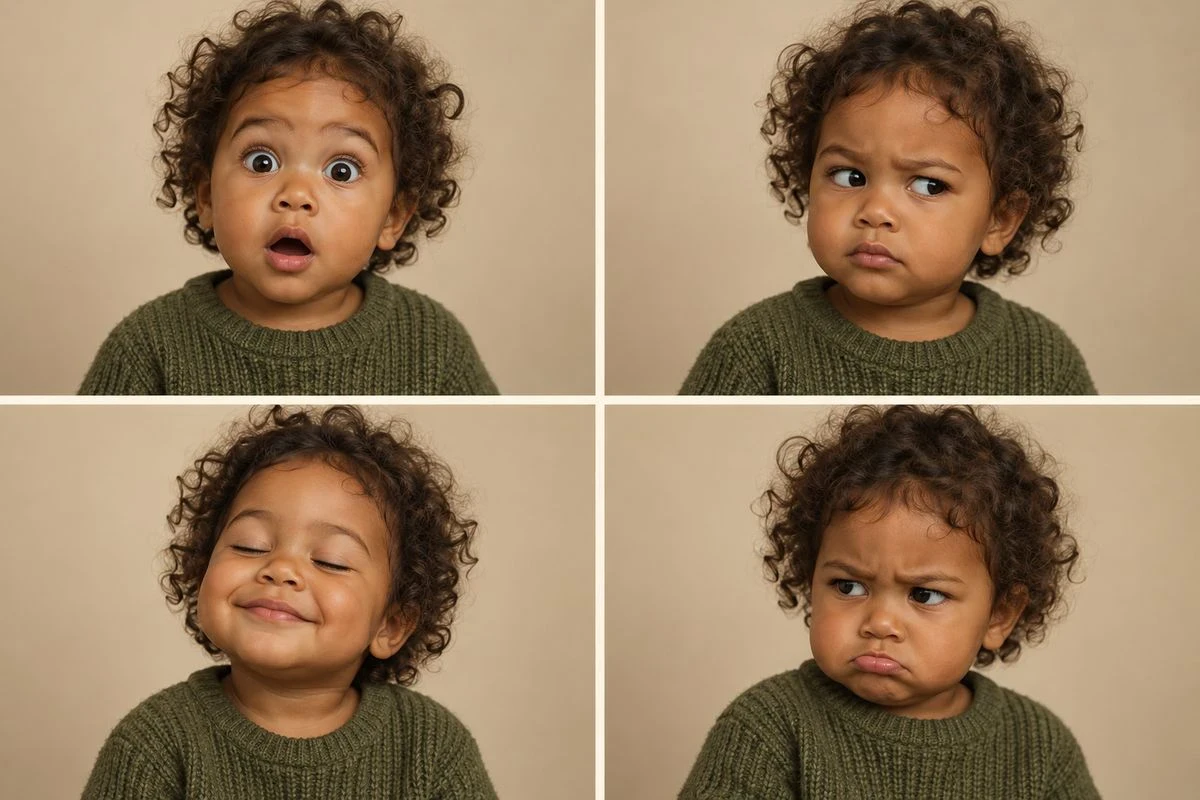
Baby Filter Meme: Four Reactions You Can Make Your Own
Build a baby filter meme with a readable expression, a short caption, and an original image instead of copying an old Snapchat screenshot.