AI Video Extender: How to Continue or Expand a Short Clip
Extend, continue, or expand a short video with an AI video extender. What the workflow actually does, how to keep motion consistent, and where it stops being useful.

An AI video extender does one specific thing: it takes a clip that stops too early and generates the seconds that should have come after it. Not a slowed-down version of the same footage, not a crossfade into a still frame, and not a higher-resolution copy — actual additional motion that continues what the source was already doing.
That is a narrower job than the marketing around it suggests, and it is the reason results vary so much between attempts. When the source clip gives the model clear continuity to work from, extensions hold together. When it does not, the added seconds drift into something that no longer matches.
This guide covers what the workflow does, how the wording around it maps to the same operation, and the checks that separate a usable extension from one you have to discard.
Extender, continuer, expander: three words for one job
Search for this workflow and you meet at least three vocabularies. They describe the same operation, which is worth knowing before you compare two tools that appear to do different things.
| What people search for | What it describes |
|---|---|
| AI video extender / video extender AI | The whole workflow: adding seconds to the end of a clip |
| AI video continuer / AI video continuation | The same operation, framed around continuity rather than length |
| Continue to video / continue video with AI | The action phrasing, common in short queries |
| AI video expander / video expand AI | "Expander" is used interchangeably with "extender" in most tool copy; it is the same job |
| Extend video / extend a video / video extend | The verb form, used when people are describing the task rather than the product |
| Video clip extender / clip extender | The narrower framing, used when the source is a short clip rather than a full sequence |
| AI video extender with prompt / video to video extender | Specifies that a direction prompt is accepted, or that the output is also a video |
The practical consequence: if one tool is called an extender and another a continuer, that is naming, not capability. The difference that actually matters is whether the tool accepts a direction prompt, how many seconds it can add in one pass, and whether the output keeps the source frame rate and aspect ratio.
Two terms that are not the same job, despite often appearing in the same list: expansion of the frame (adding picture outside the original borders, sometimes called a video background expander) and extension of time (adding seconds to the end). Only the second is what this workflow does.
Why clips stop early
Before extending anything, it helps to know why the clip is short, because the cause changes what the extension has to work with.
The generator capped the duration. Most image-to-video and text-to-video models produce a fixed short length, often five to ten seconds. The clip did not stop because the scene ended; it stopped because the model ran out of allowance. Extensions work well here, because the motion was continuing when the clip was cut.
The source was a still image. A photo animated into video produces a finite amount of believable movement. Past that point the model has nothing new to invent, so it loops or drifts. Extensions on these clips are harder and need a clear direction prompt.
The scene genuinely ended. A clip that resolves — a subject sits down, a camera settles — has nothing left to continue. Extending it produces motion that undoes the ending, which rarely looks right.
The clip was cut in editing. If the footage is a trimmed segment rather than a generated clip, the "missing" seconds may exist in the original file. Check before generating.
The first case is where this workflow earns its place. The second works with care. The third and fourth are usually better solved another way.
How to extend a clip in three steps
Step 1 — Pick a source clip that ends mid-motion. The single biggest predictor of a good result. Camera movement that is still travelling, a subject still walking, a gesture still completing — all give the model continuity. A clip that ends on a static frame gives it almost nothing, and the extension has to invent rather than continue.
Step 2 — Give one direction, not a new scene. The prompt should describe how the existing motion continues — the same camera drift, the subject completing the action, the light staying consistent. Asking for a new event in the added seconds is the fastest way to get a jump cut. Most tools weight the source clip heavily, so a contradicting prompt does not redirect the shot; it just adds noise.
Step 3 — Compare the seam, not the whole clip. Play the last second of the original against the first second of the extension. Motion continuity, exposure, and colour should be indistinguishable across that boundary. If the seam is visible, nothing later in the extension will save it.
What makes an extension hold up
Four things decide whether the added seconds are usable, and they are all visible if you look in the right place.
| Check | What to look for | Why it fails |
|---|---|---|
| Motion continuity | The direction and speed of movement carry across the seam | The model re-interprets speed, so a slow pan can accelerate in the extension |
| Exposure and colour | No brightness or white-balance shift at the join | Each generation pass re-estimates the lighting, and small errors compound across passes |
| Subject integrity | Faces, hands, and text stay the same | Anything the model is weak at reconstructing degrades first in newly generated frames |
| Camera logic | The framing continues rather than jumping | A source clip with a fast move leaves the model guessing where the camera was heading |
A useful habit: watch the join at half speed. Drift that is invisible at normal playback is obvious when the frames are slowed, because the eye gets time to compare adjacent frames.
Extending, expanding, upscaling: keeping them apart
Three operations get bundled in the same product pages, and mixing them up wastes time.
Extending adds time. Ten seconds becomes fifteen. The output has more frames than the input.
Expanding the frame adds picture. A 16:9 clip becomes wider, or a square clip gains background at the edges. The duration does not change.
Upscaling adds resolution. The same seconds come back sharper, with no new frames and no new picture area.
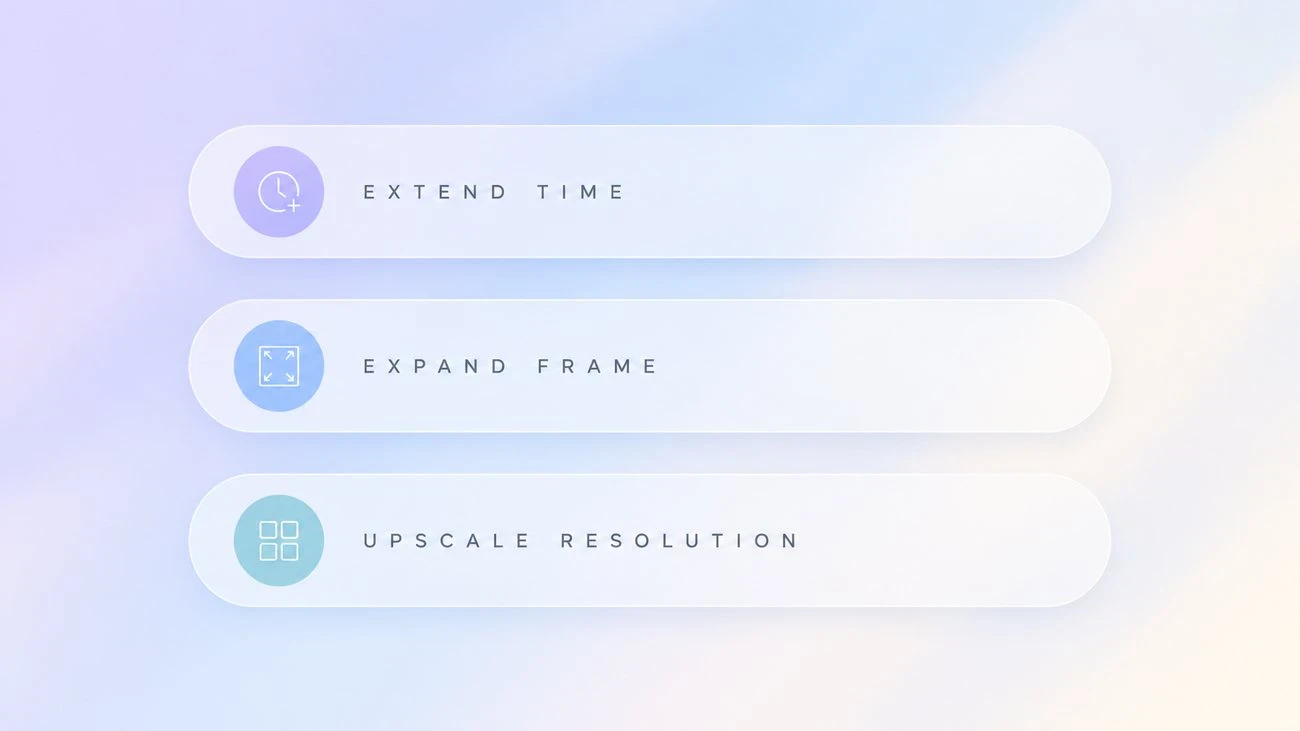
None substitutes for another. A clip that is too short stays too short after upscaling, and a clip that is framed too tightly stays tightly framed after extending. Deciding which problem you actually have is most of the work.
How much longer can a clip get
Worth setting expectations before you start, because the useful range is narrower than the feature list implies.
A single short extension is the reliable case. Adding a few seconds to a clip that ends mid-motion usually holds together well enough to be usable. The model has recent frames to reason from, and the errors it introduces do not have much room to accumulate.
Longer single passes get progressively softer. The further the generated footage gets from the source frames, the more the model is extrapolating rather than continuing. Motion tends to slow, detail tends to smooth out, and by the end of a long pass the clip often reads as a different shot.
Chained extensions compound the problem. Extending an extension means the second pass treats already-generated frames as its source, so each pass inherits the previous pass's drift and adds its own. Two passes are usually fine; four or five rarely are.
If you need substantially more length, change the base clip instead. Generating a longer source clip — or choosing different source footage — produces a better result than extending a short one repeatedly, because the whole sequence then comes from one coherent generation rather than a chain of guesses.
The practical rule: use extension to close a small gap, not to build a long sequence out of a short one.
When not to extend
Extension is the wrong tool in several situations, and recognising them saves a wasted pass.
The clip already resolves. If the motion completes — the subject sits, the camera settles, the action finishes — extending it means undoing the ending. The added seconds have to contradict what the clip just did, and it shows.
The source is a trimmed edit, not a generation. If the footage was cut in an editor from a longer file, the seconds you want probably still exist in the original. Recovering them is exact; generating them is a guess.
The problem is framing, not length. A clip that is too tightly framed or missing background at the edges needs frame expansion, which is a different operation. Extending it produces more seconds of the same framing problem.
The problem is resolution. A soft clip stays soft after extension, because extension adds time rather than detail. Upscaling is the right operation.
You need a specific new event to happen. Extension continues existing motion. It is not a way to direct a scene. If the requirement is that a particular thing occurs at a particular moment, start from a longer generation or a different source rather than trying to steer the extension.
A worked example
A five-second clip of someone walking along a beach, camera drifting slowly right, is cut off before the walk finishes. This is close to the ideal case.
The motion is consistent and still in progress, there is one clear subject, the lighting is even, and the camera move has a single direction. An extension of a few seconds with a direction prompt like "the walk continues at the same pace, the camera keeps drifting right" has everything it needs to hold continuity.
Now change one variable: the same clip, but the camera whips left in its final second. The model now has no single direction to continue, because the source ended mid-course-correction. The extension will pick one and commit to it, and the odds of it matching the original intent are low. Trimming the clip to end before the whip — then extending — produces a far better result than extending the clip as-is.
That is the general pattern. Extension does not fix a source clip; it continues one. Most disappointing results trace back to a source that was not a good candidate to begin with.
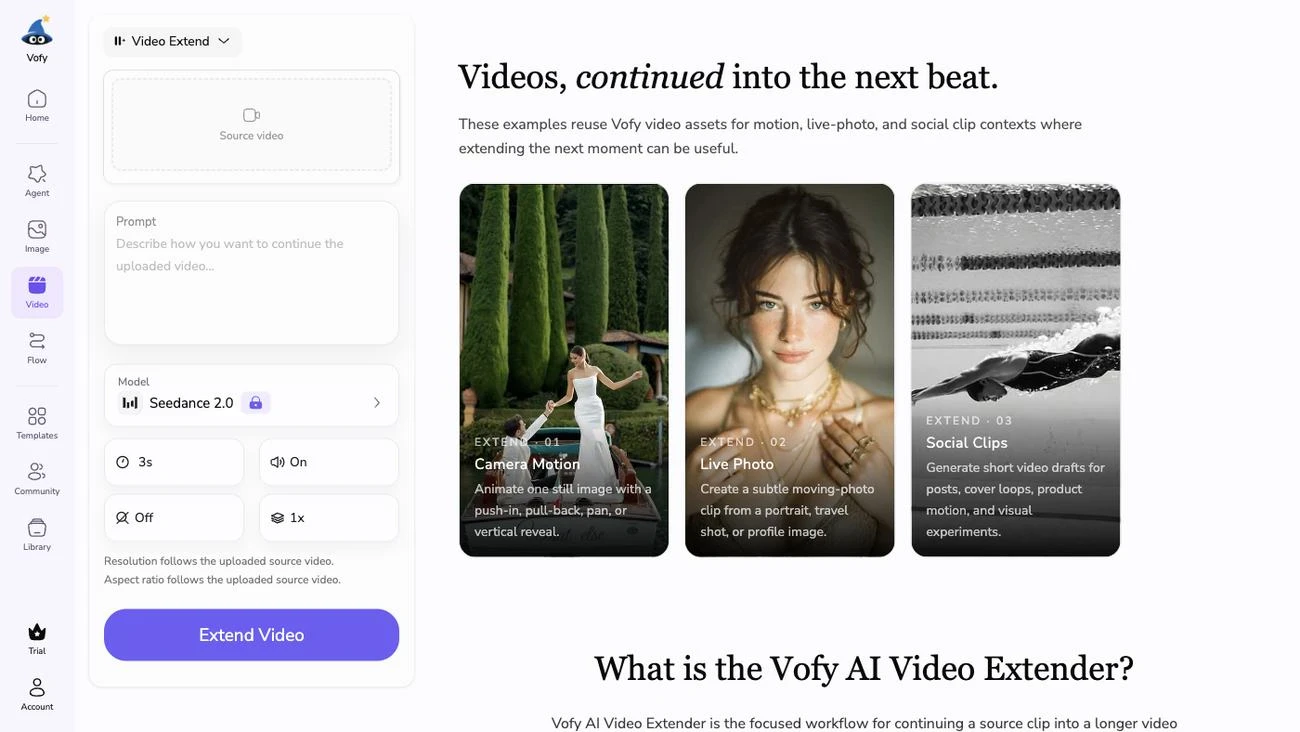
Working from the right source clip
The source sets the ceiling here more than any setting does.
Stable camera movement. A slow, consistent move extends predictably. Handheld shake or a fast whip gives the model a motion it cannot continue, because there is no single direction to carry forward.
One clear subject. Clips with a single person or object in motion extend better than busy scenes, because the model can track one thing and infer what happens to it.
Consistent lighting. A clip that is already shifting exposure leaves the model to guess where the exposure was going, and the extension usually guesses wrong.
Avoid hard cuts in the source. If the clip contains a cut, the extension starts from whichever shot the last frame belongs to and will not reconstruct the edit.
Common failures and what to do instead
The extension drifts into a different scene. The prompt asked for more than the source could support. Drop the prompt back to describing the existing motion, or extend by fewer seconds.
The seam flickers. Usually an exposure mismatch. Try a shorter extension — the error is smaller across fewer generated frames — or trim the original to end on a more stable frame.
Faces or hands degrade in the new seconds. This is a model limitation, not a settings problem. Keep the extension short, or choose a source where the subject is not in close-up.
The clip loops instead of continuing. The source was near-static at the end, so the model had nothing to advance. Pick a clip that ends mid-movement.
Repeated extensions compound the drift. Each pass uses the previous output as its source, so errors accumulate. If you need a much longer clip, generate a longer base clip rather than extending the same one repeatedly.
Once the source clip and the direction prompt are both pointing the same way, the workflow is quick and predictable. The failures above are almost always a source-clip problem that the extension merely exposed.
Try it yourself on Vofy
Generate AI images and videos with the best models - all in one studio.
Discover More
 Sofia Rodriguez•
AI Pembesar Payudara: Cara Edit Foto yang Terlihat Natural
Panduan memakai AI pembesar payudara untuk mengedit foto orang dewasa yang berpakaian. Tiga langkah, cara menilai hasilnya, dan batas yang perlu diketahui.
 Sofia Rodriguez•
Baby Face Filter Snapchat: Lens or Photo Edit?
Choose between Snapchat’s live Baby Face Lens and a saved-photo baby face edit, with a practical route for each goal and no false promise that one tool handles every image.
 Sofia Rodriguez•
Baby Filter Meme: Four Reactions You Can Make Your Own
Build a baby filter meme with a readable expression, a short caption, and an original image instead of copying an old Snapchat screenshot.